API Basics#
Below we start using the services offered by the Laces Hub API. For a complete list of all services and their details, please jump ahead to services overview.
These sections below will explain the basics when it comes to CRUD operations related to Linked Data publications on the Laces Hub.
List repositories#
In this example you will be retrieving the list of repositories to which your approved application has access.
The path for this service is:
https://hub.laces.tech/api/v3/repositories
Within Postman create a new request and enter the above URL into the requests URL field.
Next open the "Authorization" tab and fill in the username and password. The username should be the application ID of your registered approved application.
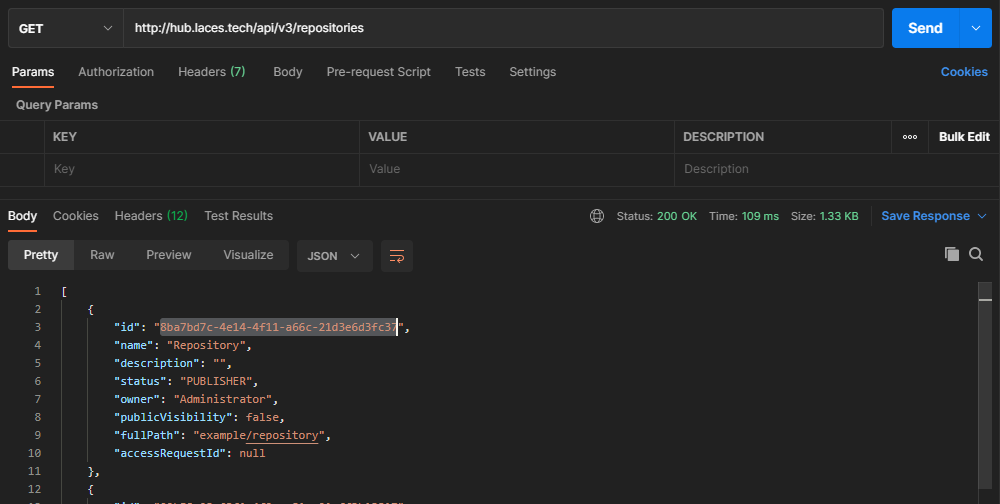
The response will contain a (JSON) list, with all repositories for which you have given (at least) viewer permissions to the approved application used to access the API.
[
    {
        "id": "8ba7bd7c-4e14-4f11-a66c-21d3e6d3fc37",
        "name": "Repository",
        "description": "",
        "status": "PUBLISHER",
        "owner": "Administrator",
        "publicVisibility": false,
        "fullPath": "example/repository",
        "accessRequestId": null
    },
    {
        "id": "29b58c03-63f1-4f9e-a81a-01eff3b18817",
        "name": "SKOS datasets",
        "description": "Simple KOS datasets",
        "status": "PUBLISHER",
        "owner": "Administrator",
        "publicVisibility": true,
        "fullPath": "example/skos-datasets",
        "accessRequestId": null
    }
]
Alternatively the cURL command for this request is:
curl https://hub.laces.tech/api/v3/repositories -H "Authorization: Basic $(echo -n <username>:<password> | base64)"
Tip: Should you want more information on the request, you could add a -v parameter to the end of the above command to see more details about the request.
List publications#
In this second example you will be retrieving a list of publications, created within a repositories to which your application has access.
The path for this service is:
https://hub.laces.tech/api/v3/repositories/{id}/publications
You should replace the {id} with the ID of an actual repository, for which you have Publisher permission. You can retrieve this ID by listing all your (accessible) repositories (see Listing repositories). So, should you wish to publish into the repository with ID 8ba7bd7c-4e14-4f11-a66c-21d3e6d3fc37
https://hub.laces.tech/api/v3/repositories/8ba7bd7c-4e14-4f11-a66c-21d3e6d3fc37/publications
In Postman create a new request and enter the above URL into the requests URL field.
Next open the "Authorization" tab and fill in the username and password. The username should be the application ID.
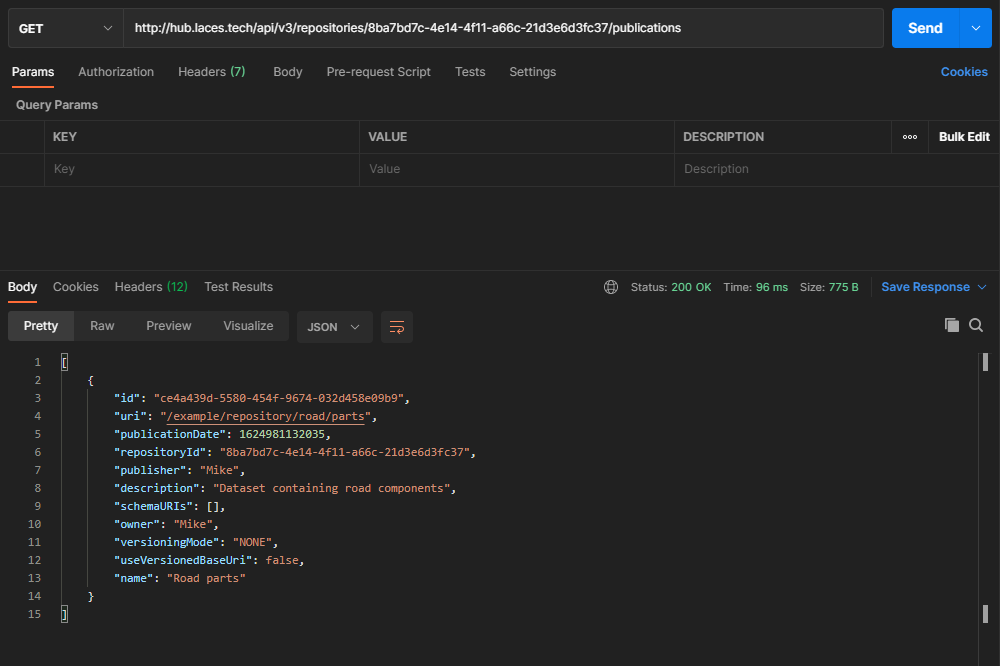
The response will contain a (JSON) list, with all publications published within the repository.
[
    {
        "id": "ce4a439d-5580-454f-9674-032d458e09b9",
        "uri": "/example/repository/road/parts",
        "publicationDate": 1624981132035,
        "repositoryId": "8ba7bd7c-4e14-4f11-a66c-21d3e6d3fc37",
        "publisher": "Mike",
        "description": "Dataset containing road components",
        "schemaURIs": [],
        "owner": "Mike",
        "versioningMode": "NONE",
        "useVersionedBaseUri": false,
        "name": "Road parts"
    }
]
Alternatively the cURL command for this request is:
curl https://hub.laces.tech/api/v3/repositories/8ba7bd7c-4e14-4f11-a66c-21d3e6d3fc37/publications -H "Authorization: Basic $(echo -n <username>:<password> | base64)"
Retrieve publication as RDF#
In order to retrieve your publication as RDF data, you can directly use the URL of a publication. The URL matches the ID of a publication, which can be retrieved using the API (see above).
The publication URL will have the following format (see Location for more details).
http://hub.laces.tech/<group>/<repository>/<publication>
Fill in the URL into the request field in Postman, set the proper authentication (see above) and (optionally) specify the format desired. In case no explicit format is specified Turtle will be used.
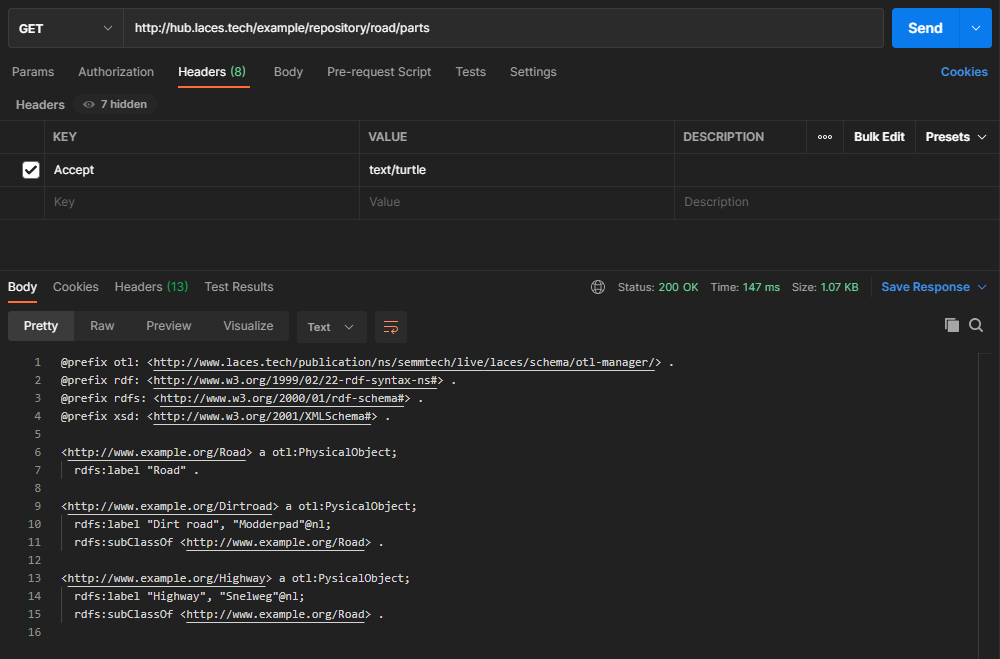
The returned RDF format can be specified using te "Accept" header. Currently the following formats are supported: