Publishing Data#
Publish your RDF Data#
In order to publish data to Laces Data Platform, you will need to perform a POST request.
The path to be use for this is:
https://hub.laces.tech/api/v4/publications?repositoryId={id}
You should replace the {id} with the ID of an actual repository, for which you have Publisher permission. You can retrieve this ID by listing all your (accessible) repositories (see listing repositories). So, should you wish to publish into the repository with ID 332bb7cd-d3d9-49ec-8e02-67892aee3011
https://hub.laces.tech/api/v4/publications?repositoryId=332bb7cd-d3d9-49ec-8e02-67892aee3011
The request should be configured as a Multipart request. Multipart requests combine one or more sets of data into a single body, separated by boundaries. In order to add the data to your request in Postman, open the "Body" tab and select the "form-data" option.
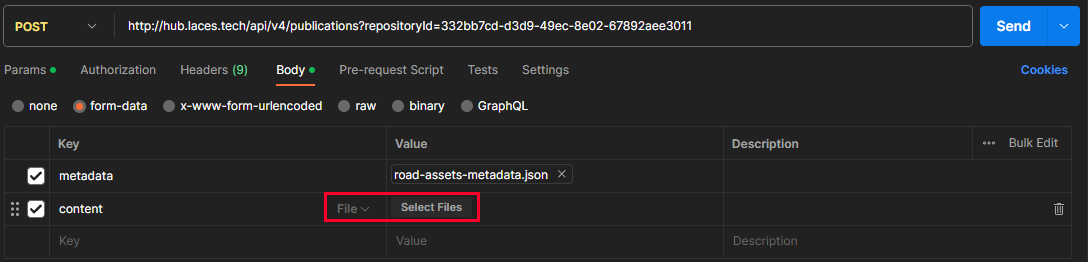
Then add two keys, "metadata" and "content" (as shown above) and change their type to "File". This will allow you to select files from your hard drive to be used for the meta data and RDF data respectively.
Warning
These variables have changed since v2 of the API; should you use /api/v2 these form-data keys should be meta-data and Content respectively.
When it comes to the meta data file, this should be a JSON formatted file as shown below.
{
    "publicationUri": "road/assets",
    "name": "Road assets",
    "description": "Dataset containing road assets",
    "owner": "Mike",
    "publisher": "Mike",
    "versioningMode": "NONE",
    "versionLabel": "",
    "schemaURIs": [ ]
}
The table below explains each of the meta-data object:
| Name | Description |
|---|---|
Relative path of your publication within the repository. Should you use the following path: road/assets, to public into a repository hosted at https://hub.laces.tech/examples/repository, the full publication location (URL) will be the concatenation of these two values: https://hub.laces.tech/examples/repository/road/assets (see Location). |
|
| Name which will be given to the publication. | |
| Short description of the publication. | |
| Name of content owner. | |
| Name of publisher. | |
Mode used for versioning subsequent publications. One of NONE, INCREMENTAL, DATETIME, TIMESTAMP, or CUSTOM using all caps (see Versioning for more details). |
|
(optional) Use in combination with CUSTOM mode, let's you define the version label. Can be any valid alpha-numerical string, including dashes and/or underscores. Value is ignored for other modes. |
|
| List of schema URIs, which can be used to specify the schema for you publication (as meta data only). |
Laces Data Platform currently accepts the following RDF formats, like Turtle (.ttl), N-Triples (.nt), N3 (.n3), RDF/XML (.rdf, .owl, .xml), JSON-LD (.jsonld), RDF/JSON (.rj)
As an example for our roads repository (10 triples), we could publish the following Turtle file:
@prefix :      <http://www.example.org/> .
@prefix rdf:   <http://www.w3.org/1999/02/22-rdf-syntax-ns#> .
@prefix otl:   <http://www.laces.tech/publication/ns/semmtech/live/laces/schema/otl-manager/> .
@prefix rdfs:  <http://www.w3.org/2000/01/rdf-schema#> .

:Road
    a               otl:PhysicalObject ;
    rdfs:label      "Road" .

:Dirtroad
    a               otl:PysicalObject ;
    rdfs:subClassOf :Road ;
    rdfs:label      "Dirt road", "Modderpad"@nl .

:Highway
    a               otl:PysicalObject ;
    rdfs:subClassOf :Road ;
    rdfs:label      "Highway", "Snelweg"@nl .
If you have set authorization, using the dedicated tab, the "Authorization" header will be set automatically. Similarly the "Content" header will automatically be configured as "multipart/form-data", based on your selection.
In case you set these headers manually, Postman will warn you that these will be overwritten.

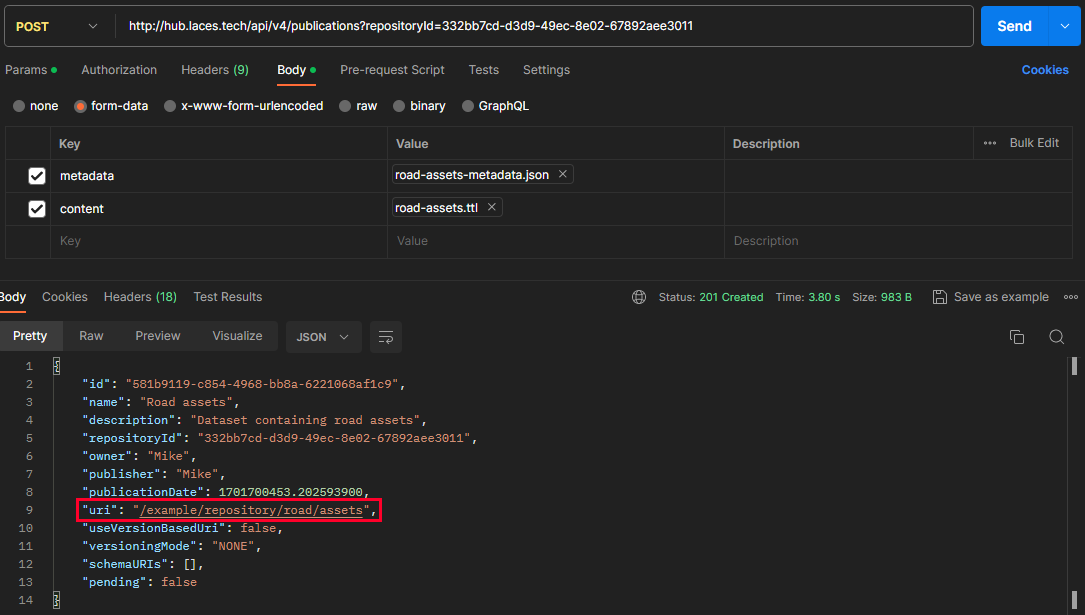
Press Send to publish your RDF model. Once the publication is created, the response will be another JSON object which will contain the publication details, including the publication ID but also its (relative) URI. When this relative URI is combined with the host URL of the LDP we get the Publication URL (so in our example this is