Browsing Laces Data Platform#
This page contains all the information you need to browse and manage Groups, Repositories, Publications, and Files.
Groups#
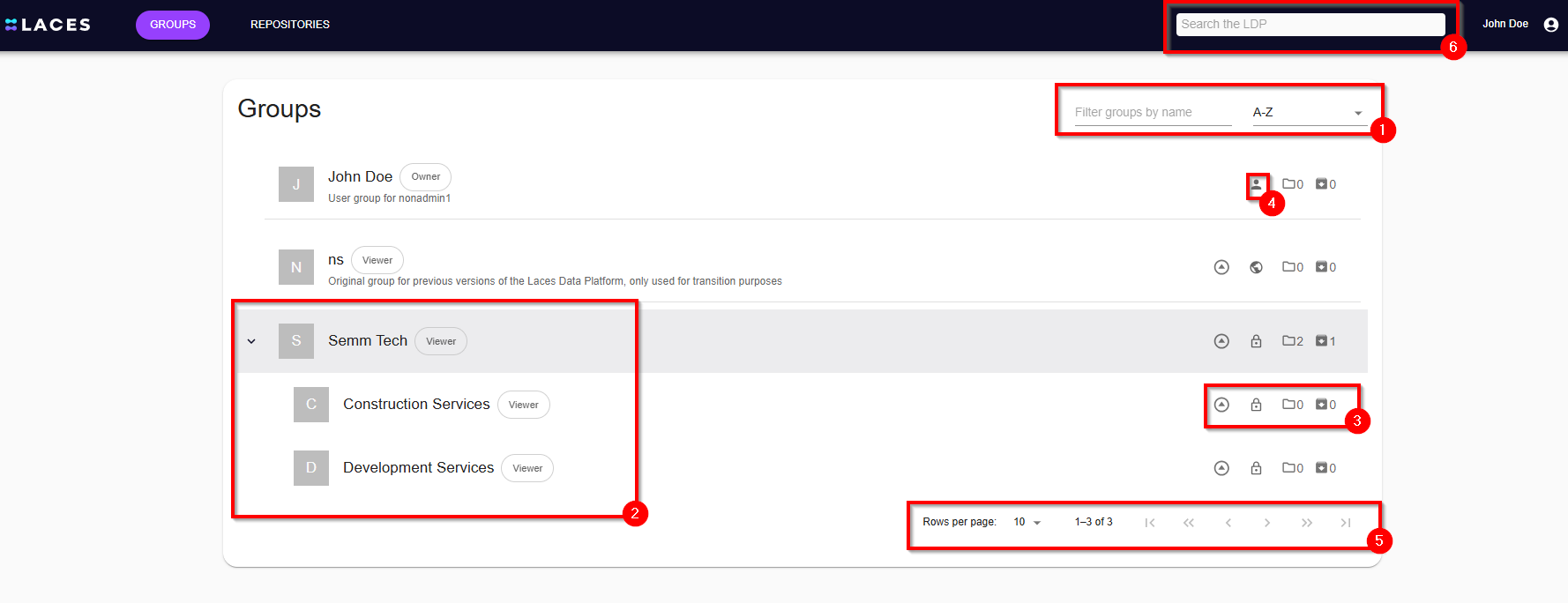
Groups are the primary organizational structure on the platform, providing a way to categorize and manage repositories and user access at a high level. You can organize repositories by organization, team, owner, project, theme, and more. Additionally, groups can include nested groups, or subgroups, for even more detailed data organization. You can sort or filter the list of available groups (1). Note that this search function does not look for repositories.
Note
As of LDP v12.8, only Laces system administrators can create top-level groups. To request a new group, please submit a service desk request here. Select "Linked Data Platform" as the category and Choose the "Ask a Question" issue type. In the request include your full name, email address, organization name, Required group name and whether the group should be made public or private. Once received, we’ll create the group and assign you as its manager. Alternatively, every user account automatically comes with a personal user group.
On the left side, you can see the group name and description. If you are a member of a group, your access level (e.g., ‘Viewer,’ ‘Publisher,’ ‘Manager,’ or ‘Owner’) will be shown to the right of this icon. You can expand a group to view its subgroups using the arrow to the left of the group name (2).
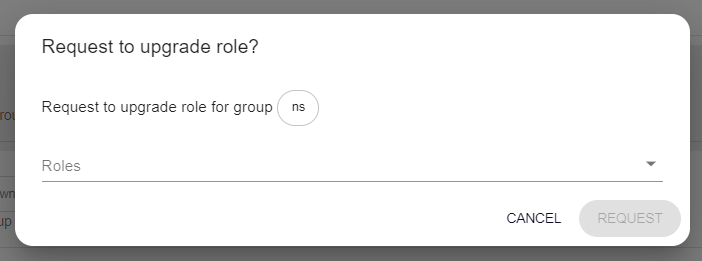
On the far right, you can see the number of direct subgroups and repositories a group contains. A globe icon indicates a public group, while a lock icon indicates a private group. If you are not the owner or manager of a group but have access, you can request an upgrade to your access level using the upward-pointing arrow on the right-hand side (3). Clicking this arrow opens a screen where you can select the desired role and send the request to the group manager(s).
Every user in Laces Data Platform has their own personal, private group which cannot be removed. You can recognise this User group on your overview because it will share your username. User groups can also be recognised by the user icon on the right (4). At the bottom of the screen you can navigate through the pages of accessible groups (5). Using the arrows you can go back or forth one or 10 pages at a time, or move to the first/last page instantly. The setting on the left can be used to determine how many groups should be shown per page.
Tip
Use the search bar at the very top of the screen to search for any group, repository or publication (6).
Managing a Group#
Within a group, you can choose to create another, new sub-group, or you can choose to add a repository to the Group.
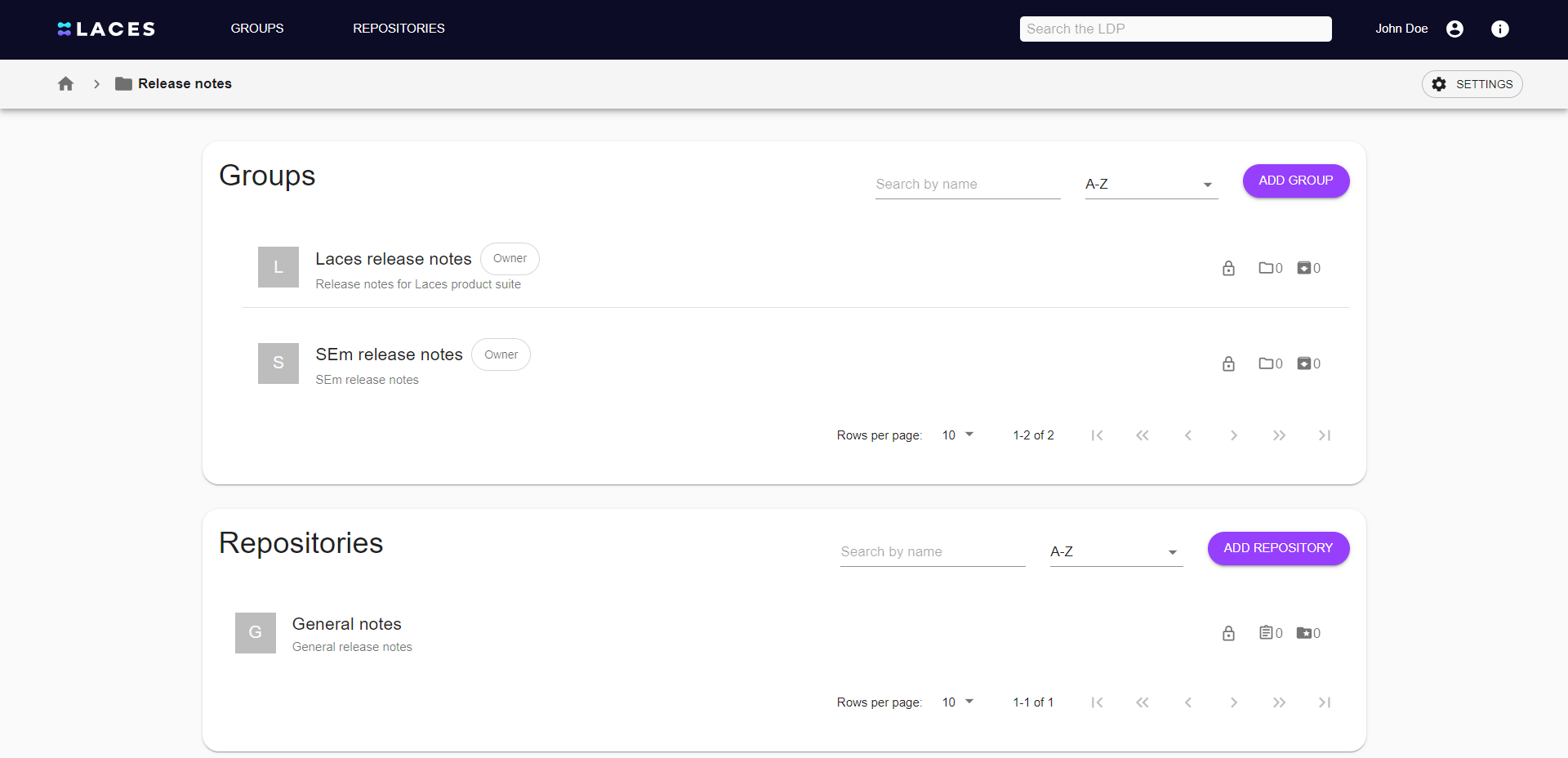
Just as on the highest (top-level) group overview, you can browse your groups by means of sorting or by searching. On top of that, there is a repository overview where you can see existing repositories and create new ones. For each repository, you can also see the number of publications within on the right-hand side.
Group settings#
After clicking the Settings button in the top-right corner, you can edit the group name, description and visibility. The members button on the left side opens the page where you can manage users' access to the group. The settings page is only available to a group manager or owner.
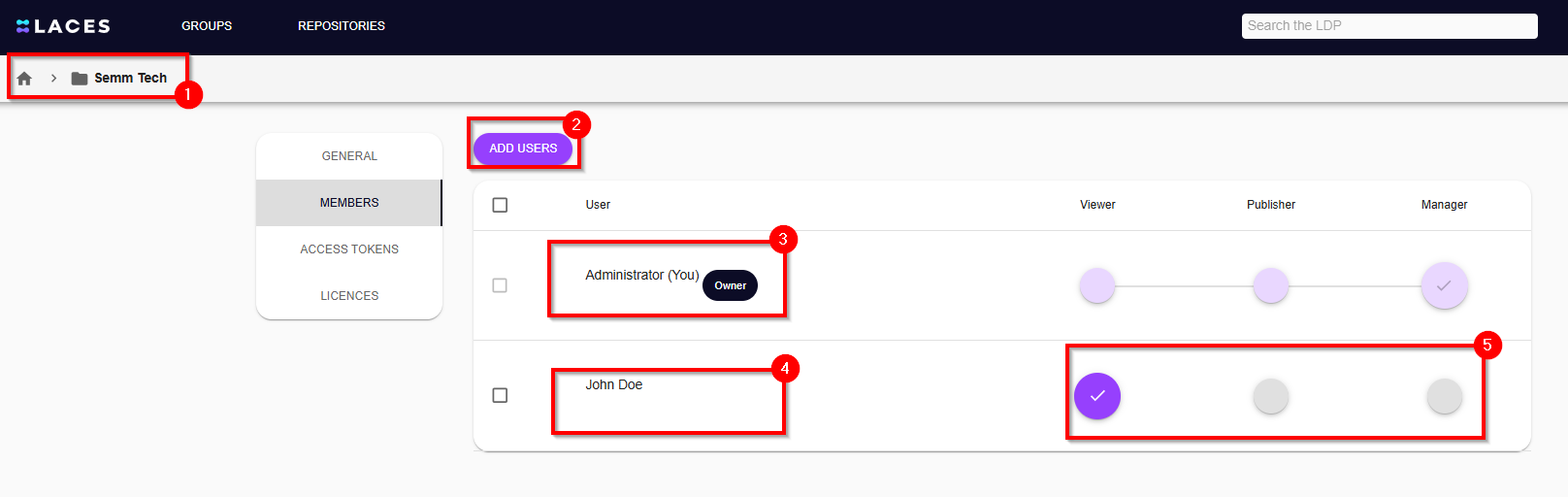
In the top-left corner, you can see where you are within the group structure (1). New members can be added to a group by using the Add users button (2).
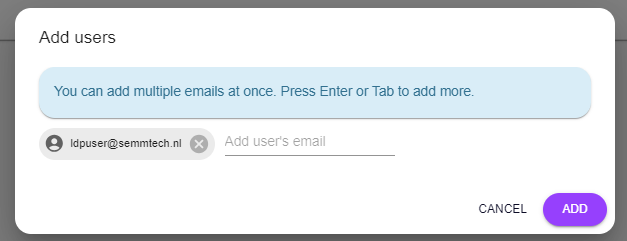
In order to add a member to the group, you must provide the registered email address of the user and press enter or tab. User will then be notified via an email about access to the group. The levels of access are explained below.
All Laces Data Platform users that are already members of the group will be shown in the User column (3) (4). The group owner is indicated by a Owner badge (4). Once the access level of a user has been set on a group, this access will be inherited by all of its sub-groups and repositories. In this case, it is only possible to give such a user extra rights on the sub-group or repository; the user can never have lower access rights on a sub-group than on the group above. Inheritance is indicated below the user name in the table (4).
There are four access levels for groups and repositories:
- Viewer: A viewer can see and access a group/repository. If a repository contains publications, a viewer is allowed to see and query these as well.
- Publisher: A publisher has all the rights of a viewer, but can also create, edit and delete publications.
- Manager: On top of the publisher's rights, a manager can edit the group/repository settings and add/remove members.
- Owner: Each group or repository can have only one owner. This user is the only person who can change the visibility of a group/repository and delete it. The group owner can only be set on a top level group and will be inherited by all of its sub-groups and repositories.
Group licenses#
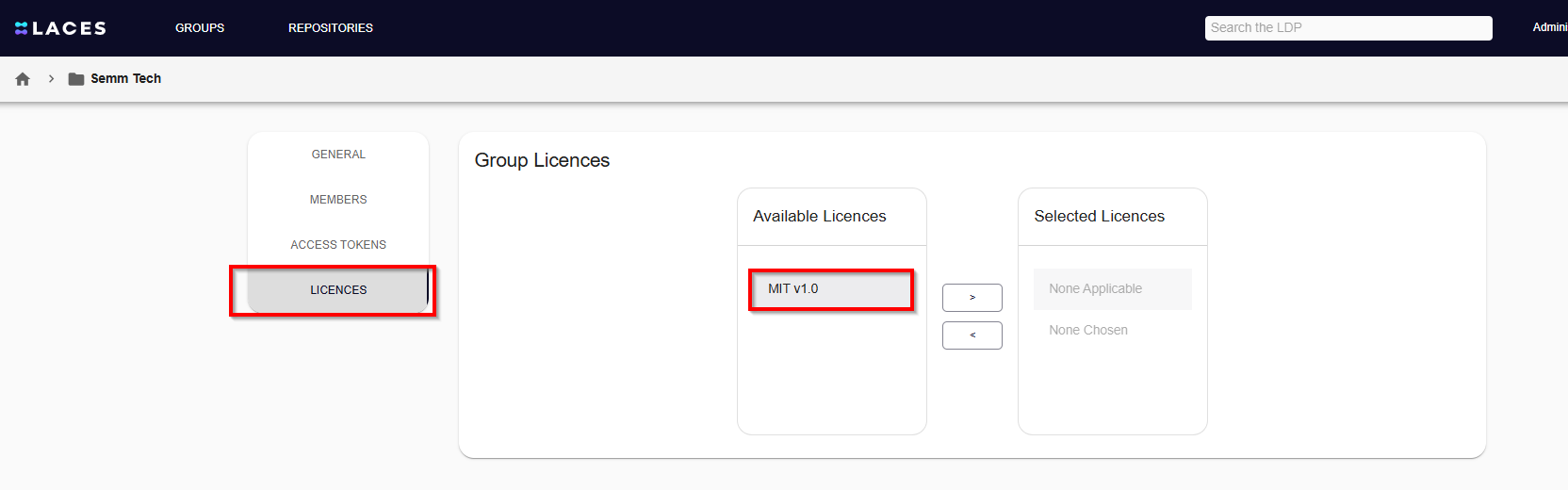
Publications can be assigned a license to ensure proper copyright and intellectual property protection. Depending on your organization's needs, multiple licenses can be enabled at the group and subgroup levels. Repositories and publications will inherit licenses from their parent group. To manage licenses, navigate to the Licenses tab under Group Settings. This tab is only visible to users with the Owner or Manager role. It displays all available licenses, which group managers can enable for their groups, repositories, and publications.
Two default license options are available in all groups:
-
None applicable: Indicates that no license is applicable to the publication or its files.
-
None chosen: Indicates that a license has not been selected. This may still imply internal usage restrictions.
Warning
If no other license is selected, the None chosen license will be applied by default to all publications.
Note
To add a new license type, please submit a service desk request here. Select "Linked Data Platform" as the category and Choose the "Ask a Question" issue type. In the request include your full name, email address, organization name,license name and URL for where terms and conditions are hosted. Once received, we’ll create the license type and display it under available licenses.
Repositories#
Repositories are containers for related publications and/or files. They often will be dedicated to a single project or purpose. Despite the differences in purpose between repositories and groups, they have a very similar user interface.
Creating a repository#
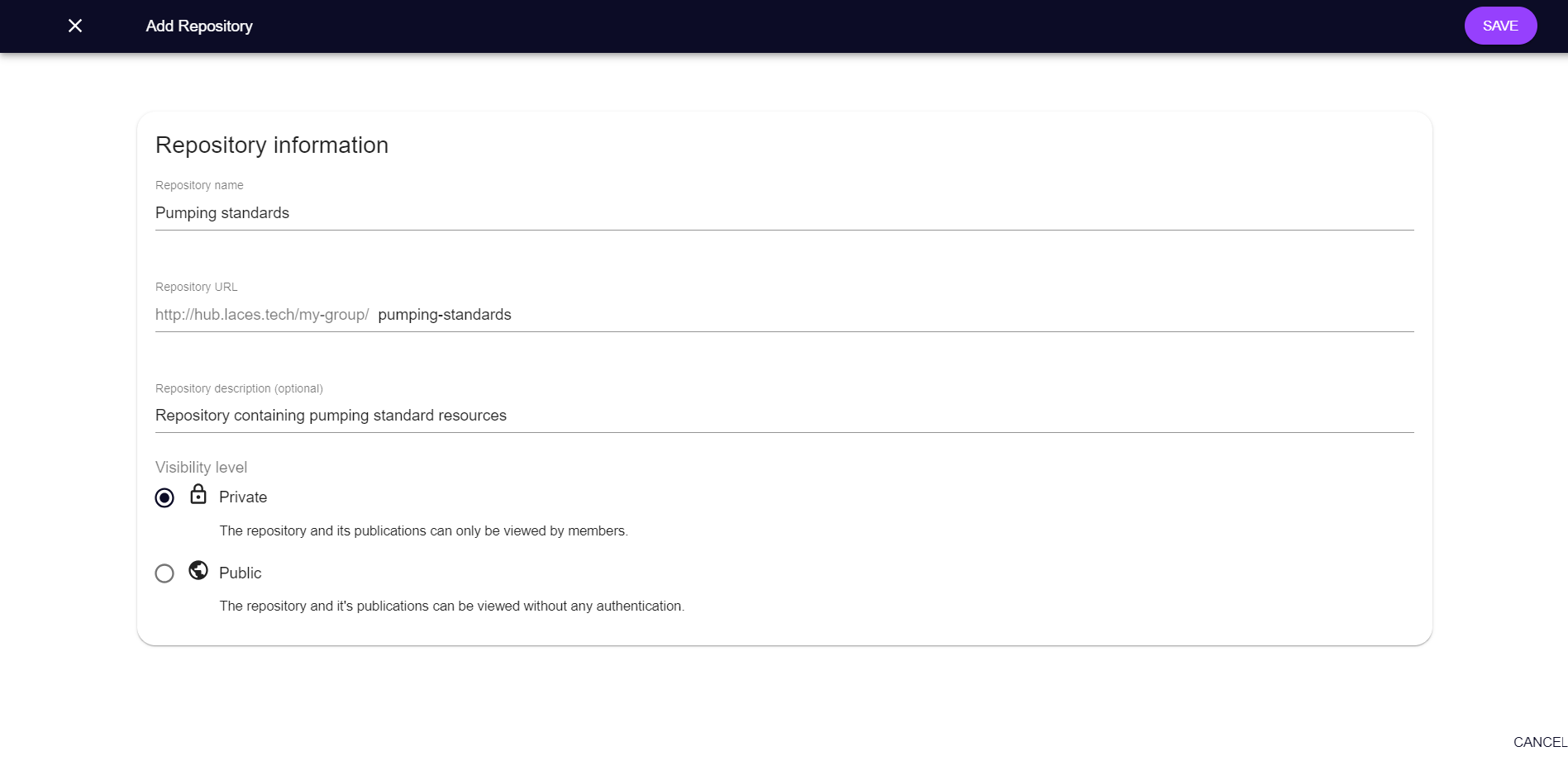
Within a Group, you can select ‘Add Repository’. Once selected, you can specify your new Repository by adding a name and description, and specify its visibility level on either Private or Public within the context of your group. Note that you cannot create a public repository within a private group. The options here are the same as for adding a group.
Repositories overview#
If you select the ‘Repositories’ button on top, you will get an overview of the repositories available to you.
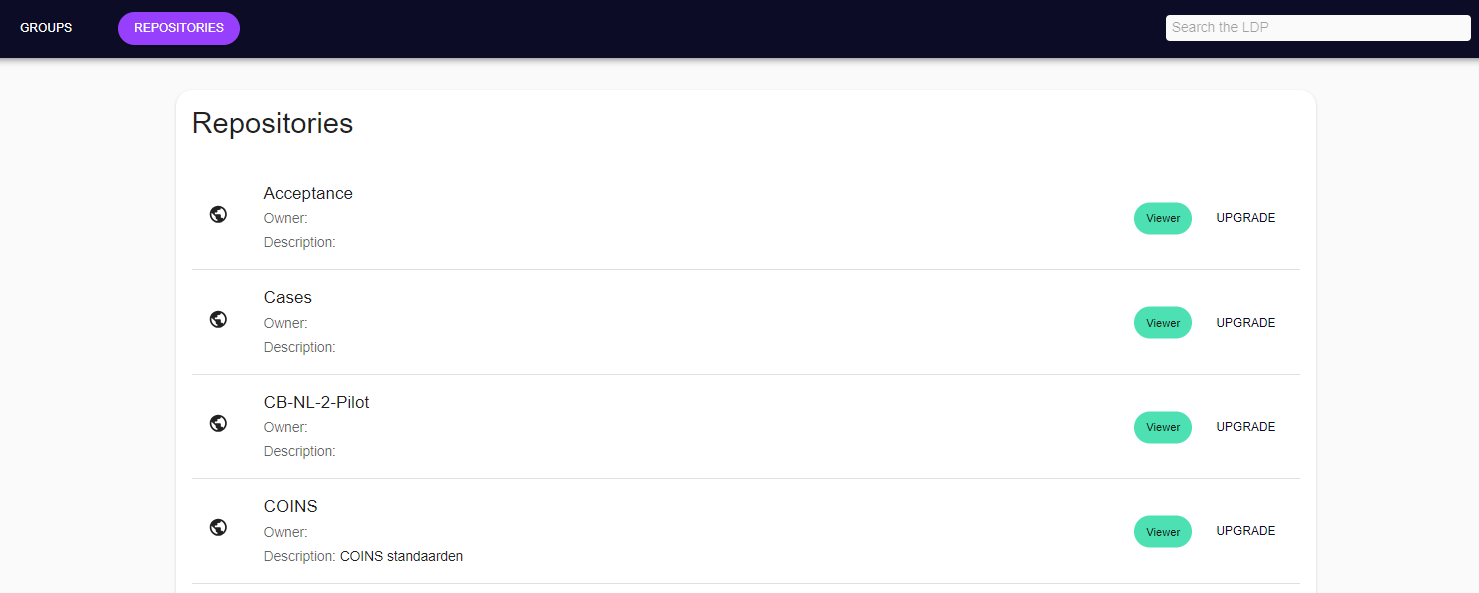
Just as with groups, you can see what rights you have as a user to those repositories. By selecting ‘upgrade’, followed by the specification of what role you would want, you can request an upgrade your access rights. The repositories which are public can be recognised by the ‘globe’ icon, while private repositories can be recognised by the ‘lock’ icon.
Selecting a Repository#
When you select a repository, you can see what publications are stored within that repository. The versioned publications are presented together, as are the non-versioned publications.
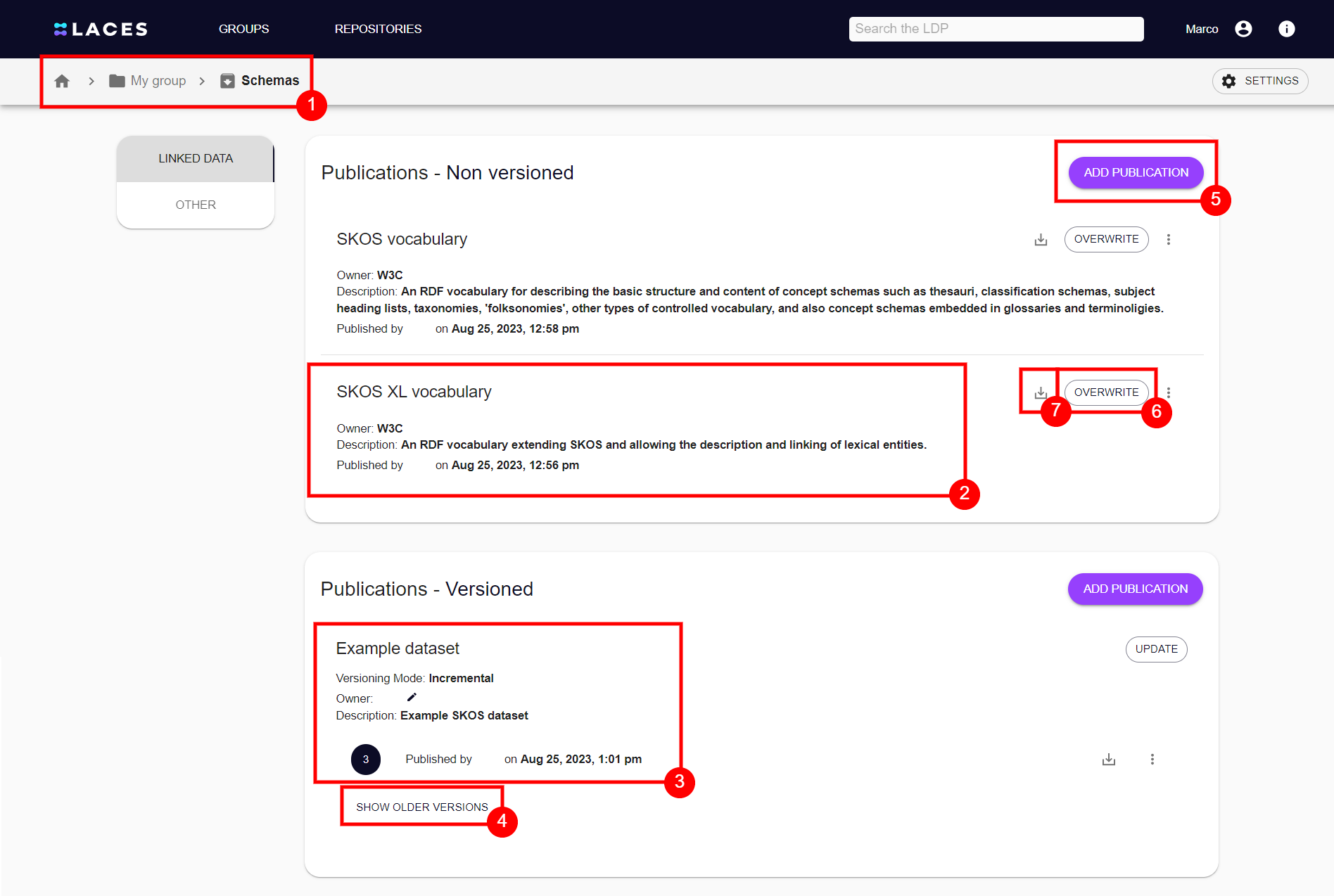
In the top-left corner, you can see your location within Laces Data Platform as always. In this case, it is the repository Schemas within the My group group (1). For each publication, its name, owner and description (if present) are shown (2). In case of versioned publications additionally the versioning mode, together with the latest version is shown (3). In order to expand a publication's versions, click show older versions (4).
Finally, it is possible to add new publications (5), overwrite or update an existing publication (6) or download a publication (7). Non-versioned publications can only be overwritten, while versioned publications can only be updated to add a new version.
Publications#
Publications are collections of RDF data. All data found in one publication, together represent a single coherent dataset.
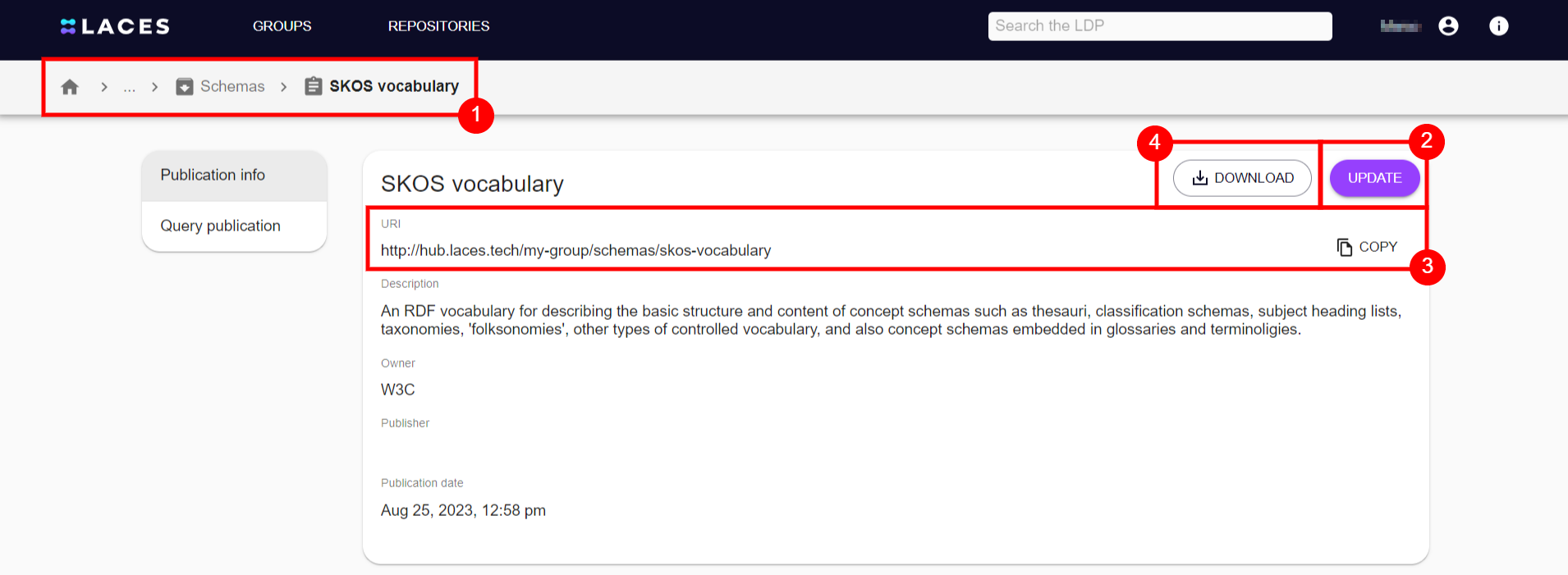
The breadcrumbs in the top-left corner once again show your location within the Laces Data Platform structure (1). In this case, the SKOS vocabulary publication within the repository Schemas.
Users that have at least Publisher access can edit the description and publisher (2). The publication URI can be copied easily using a dedicated Copy button (3). To download the publication, simply press the download button (4).
Querying a publication#
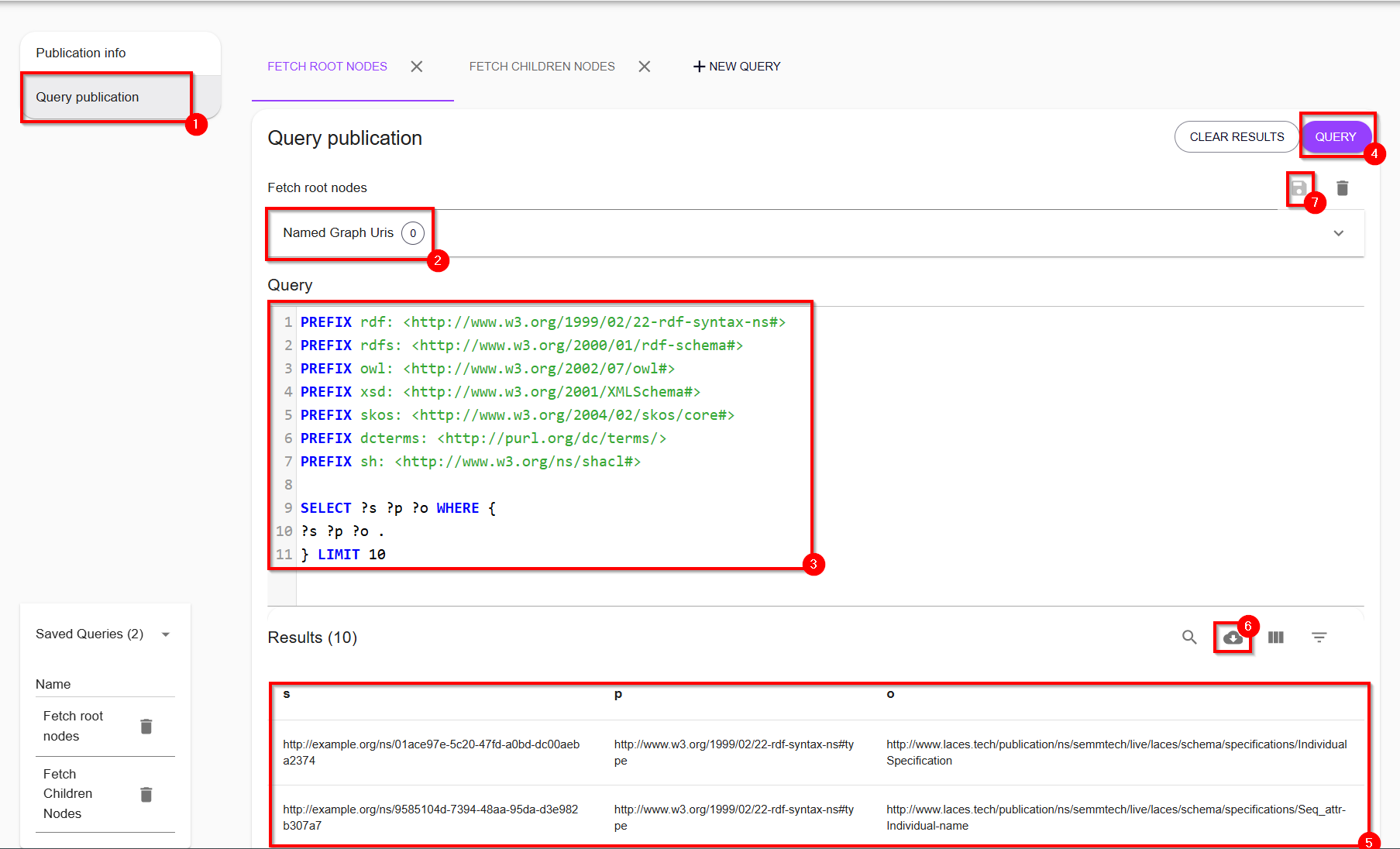
Publications can also be queried directly from the LDP user interface. To do so, navigate to the Query publication screen within a publication (1). You can write your custom query here (3). If you would like your query to retrieve data from other LDP named graphs as well. Named graph URI can be added in two ways. The first method is to add the graph in the Named Graph Uris section (2), the second method is to specify the named graph within the query itself (3). While providing the URI, make sure it starts with http://.
However, both methods require an additional statement in the WHERE section of the query (3) to indicate which data should be retrieved from the named graph. Refere to W3C standard on how to construct queries with named graphs. These methods are valid for graphs within the LDP, querying from external triplestores can be done using the keyword SERVICE.
The LDP supports two types of queries: SELECT and CONSTRUCT queries. A SELECT query is used to match patterns in the graph and retrieve results, a CONSTRUCT query specifies how a graph should be constructed and retrieves a new graph. There is a slight difference in approach when performing these types of queries. LDP recognizes which type of query is written and shows the relevant options. After writing a SELECT query, you press the Query button (4) to view the results (5). These results can be downloaded in CSV format (6). Queries can also be saved by giving them a name for reuse (7).
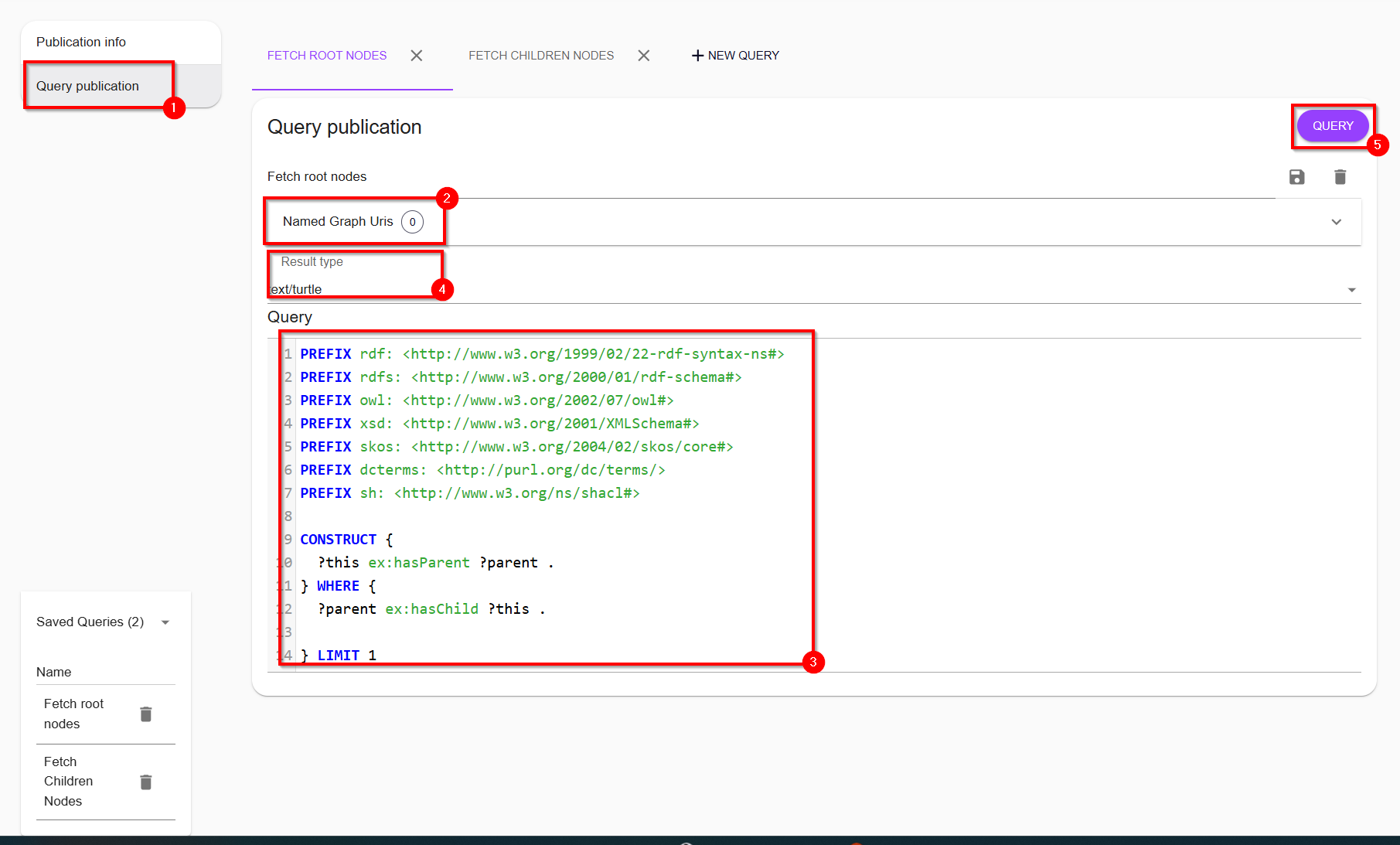
After writing a CONSTRUCT query, the desired output format (4) needs to be specified. The accepted output formats are:
- text/turtle
- application/x-turtle
- application/rdf+xml
- application/n-triples
- application/ld+json
Click on the Query button (5) to download the output graph.
Save SPARQL queries#
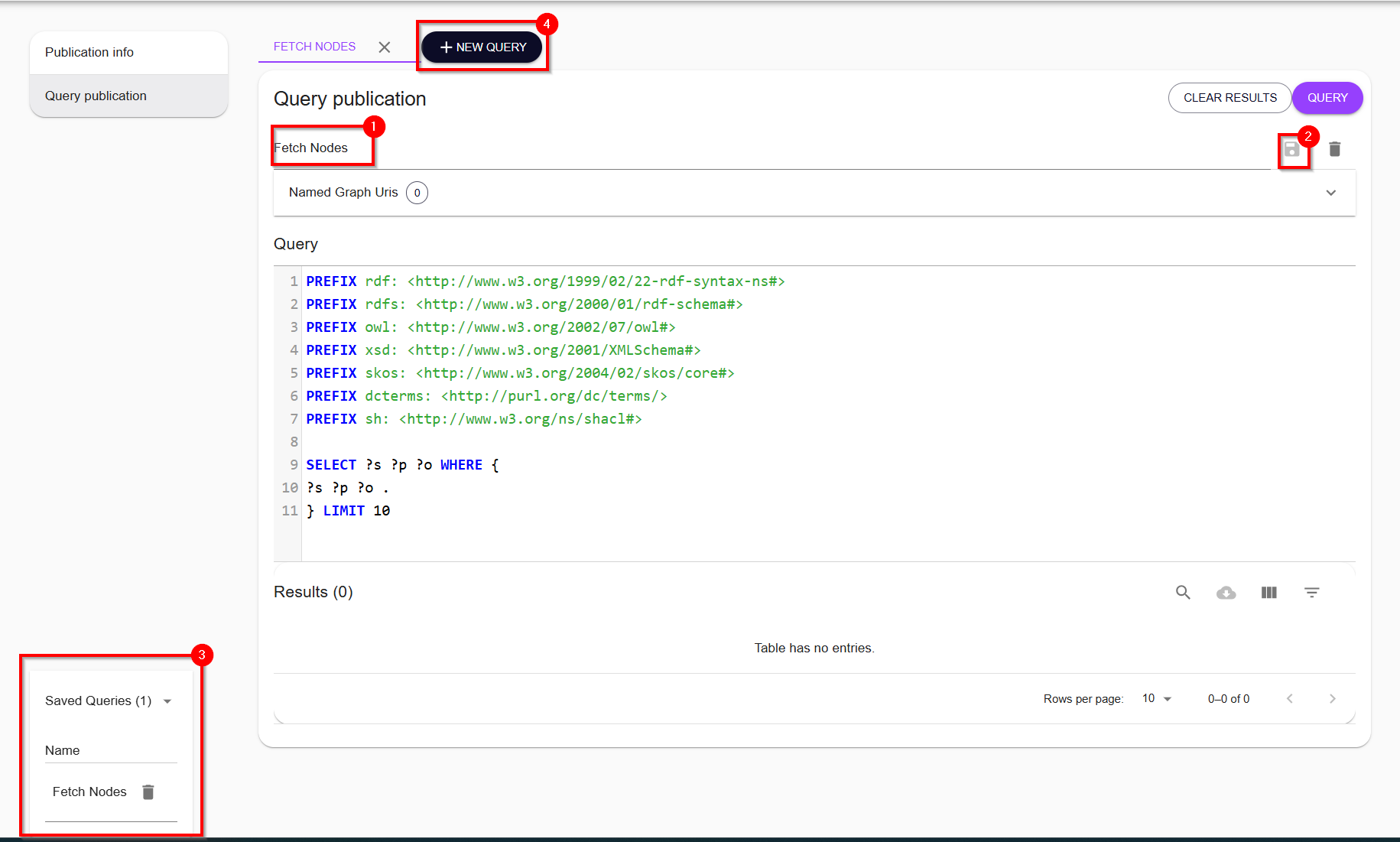
In the LDP interface, SPARQL queries can be saved for future use and are associated with a specific publication or its version if it is versioned. To save a query, users must provide a name(1), which enables the save button(2). Saved queries are listed by their names in a dropdown menu (3) at the bottom of the interface, and selecting a query from the list opens it in a new query tab (4). If a saved query is modified, users must save the changes explicitly to update the stored version. Permissions for managing queries are role-based: users with Viewer permissions can view and run saved queries but cannot create, edit, or save them. In contrast, users with Publisher or Manager permissions have full control, allowing them to create, edit, update, save, and delete queries.
Files#
Repositories can also hold non-RDF data, like images or documents and other types of files. While in a repository click on the Other menu option to the left of the publications. This will show the files already added to a repository.
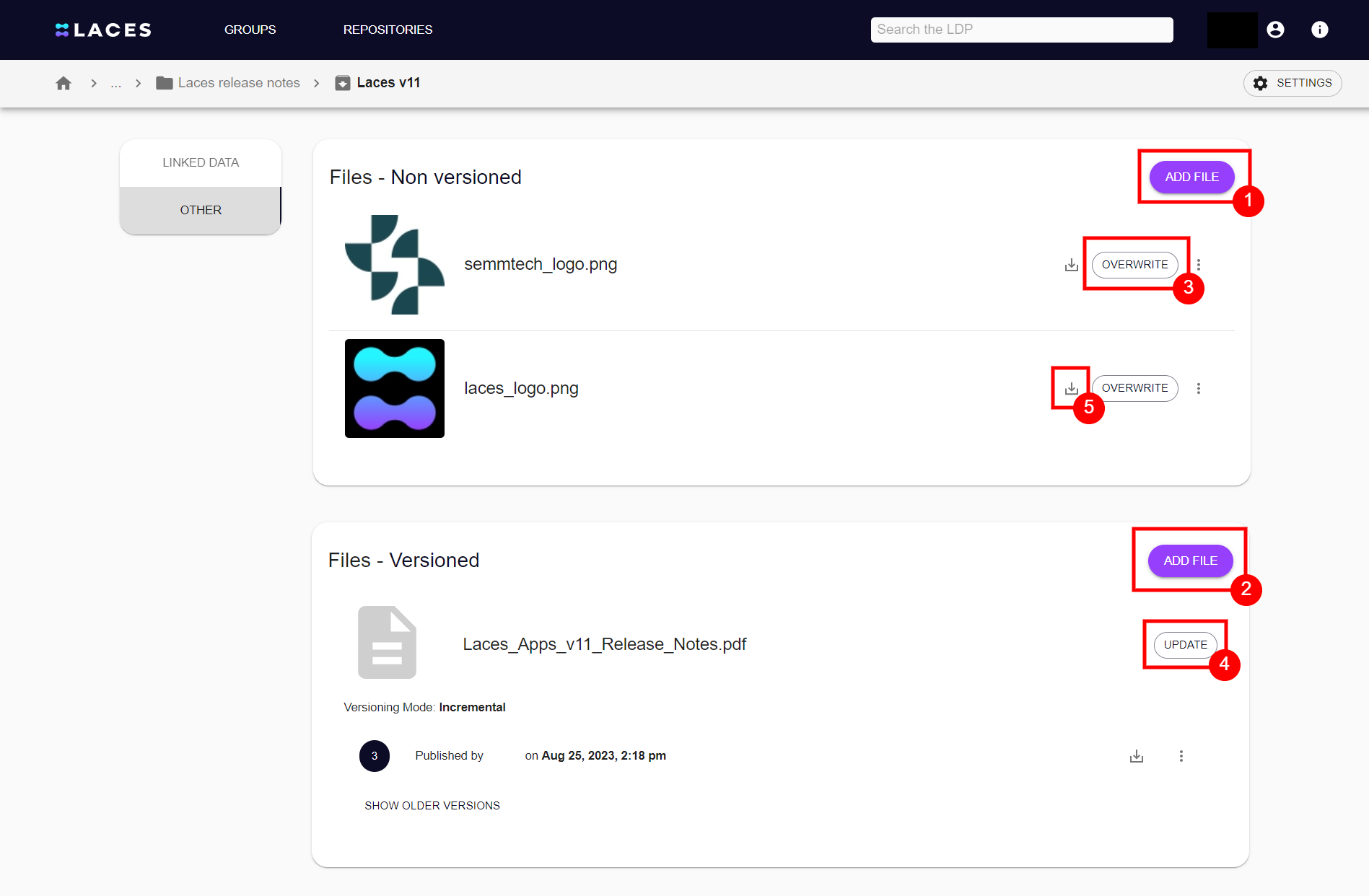
Just as with publications, files can be either versioned or simply consisting of a single version. From within the overview you create and upload a new file, using the 'Add File' button (1) or (2). Already uploaded files can be either overwritten, in case of non-versioned files (3) or updated (4) in case of versioned files, which will create a new version of the file, while keeping the previous version. And finally files can be downloaded (5).
Publication/Files metadata#
Metadata can be added to publications and files for effective governance and management of publications and files. When creating a publication via the LDP, several default metadata fields are automatically included. Below is a list of the default metadata fields, along with their definitions:
| Metadata | Definition | Required | Applicable to | Type |
|---|---|---|---|---|
| publicationUri | URI of the publication (Autogenerated) | yes | publications/files | string (Autogenerated) |
| name | Name of the publication | yes | publications/files | string |
| owner | Legal owner of the publication | yes | publications | string |
| description | Brief explanation about the publication | no | publications | string |
| versioningMode | It can be one of “NONE“, “CUSTOM“, “DATE_TIME”, or “INCREMENTAL”. Empty String ““ is considered “NONE“ as well. | yes | publications/files | string |
| versionLabel | Label used to identify this version of a Publication, but only for versioned publication it is mandatory. | yes | publications/files | no |
| icon | Icon/image that describes the publication. Image should be provided base64 encoded format. | no | publicatio | string |
| ldvLink | URL to a linked data viewer. | no | publication | string |
| publicationDate | Publication creation date. | yes | publication/files | string (Autogenerated) |
| license | Name and URL of the license attached to the publication. | no | publication | JSON object |
| contributor | Users who contributed in creating the publication. | no | publication | string |
| creator | YUser who created the publication | yes | publication/files | string (Autogenerated) |
| workspace | Laces Apps workspace publication is created from. | no | publication/files | JSON object |
| sparqlEndpoint | Endpoint where publication can be accessed. | yes | publication | string (Autogenerated) |
In addition to the default fields, the system supports the ability to define custom metadata fields to accommodate specific user or organizational needs. These fields allow for greater flexibility in capturing domain-specific or project-specific metadata that may not be covered by the standard set.
Note
Currently, the creation and display of custom metadata is only possible for publications created via API. Custom metadata cannot be viewed or added through the user interface (UI). We are actively working on enhancing the UI to support the creation, editing, and management of custom metadata fields. This functionality will be made available in the future releases.
Requests#
When a user requests (upgraded) access to a group or repository, the manager(s) and/or owner will be notified by email.
Handling Requests#
To navigate to the pending requests, select your Profile icon in the top-right corner and then select Requests.
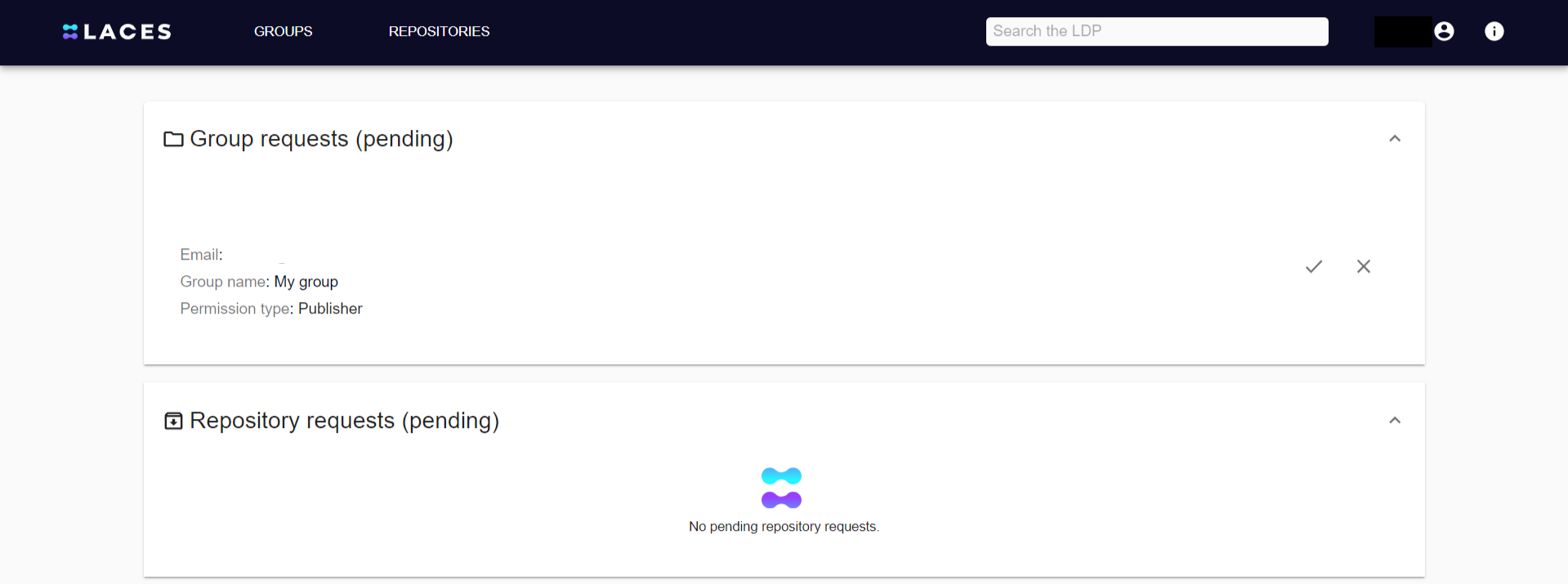
Here, you have an overview of pending requests to your groups or repositories. Each request shows the user who initiated the request (including their email), the group/repository for which the request has been made and the requested access level. Using the check mark or x, you can either accept or deny the request respectively.
Searching the Laces Data Platform#
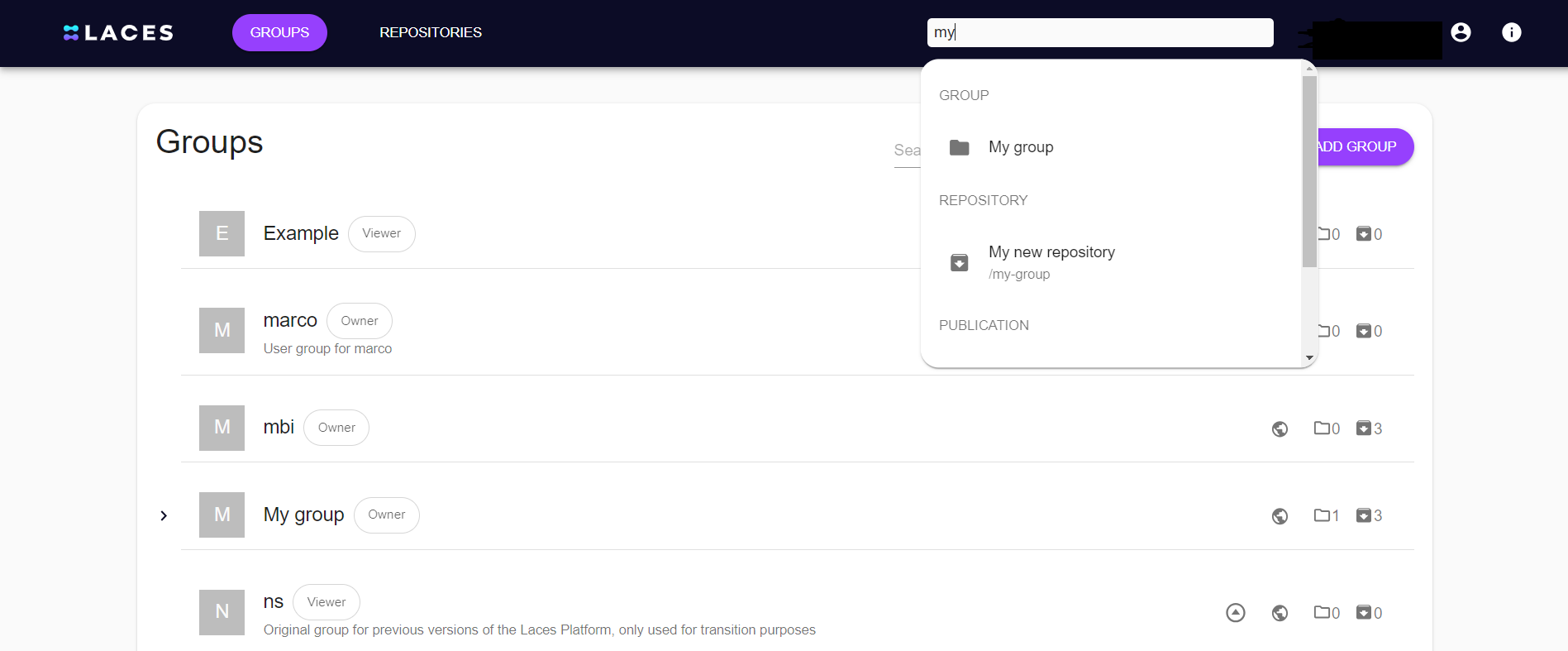
Using the search bar at the top of the screen, it is possible to search the Laces Data Platform for groups, repositories and publications at the same time. The search results will only show items that the user has access to.
Access tokens#
To make efficient use of the data on the Laces Data Platform, you can connect applications to it. Each user can create Access Tokens and provide these with permissions to groups and repositories, using the permissions they have as user for these groups and repositories.
In addition, managers and owners of groups and repositories can create Access Tokens on a specific group or repository. They can assign a specific permission level to the access token (viewer, publisher or manager). An external application which uses this access token to connect to the Laces Data Platform will be granted that permission level on the specified group (and sub-groups) or repository.